

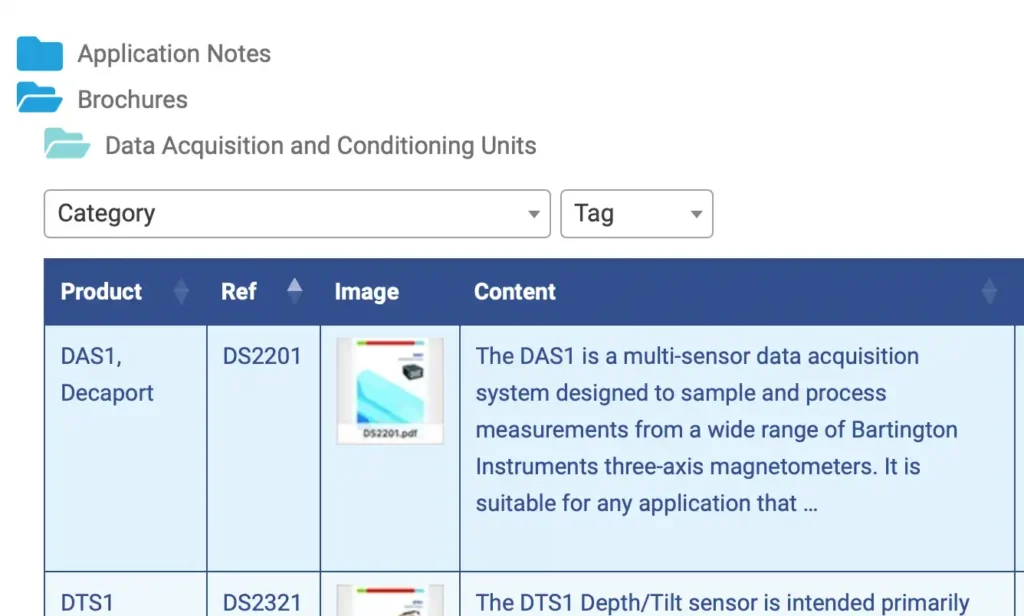

We’ve worked hard to make finding what you want quick and easy. This page shows you how to find all kinds of content.
Most visitors are looking for new and popular content, so we have included these for you as buttons, but searches can be made and filtered in many ways to show exactly what you want, whether it is everything available for a specific product, or just cables, or just unpackaged products.
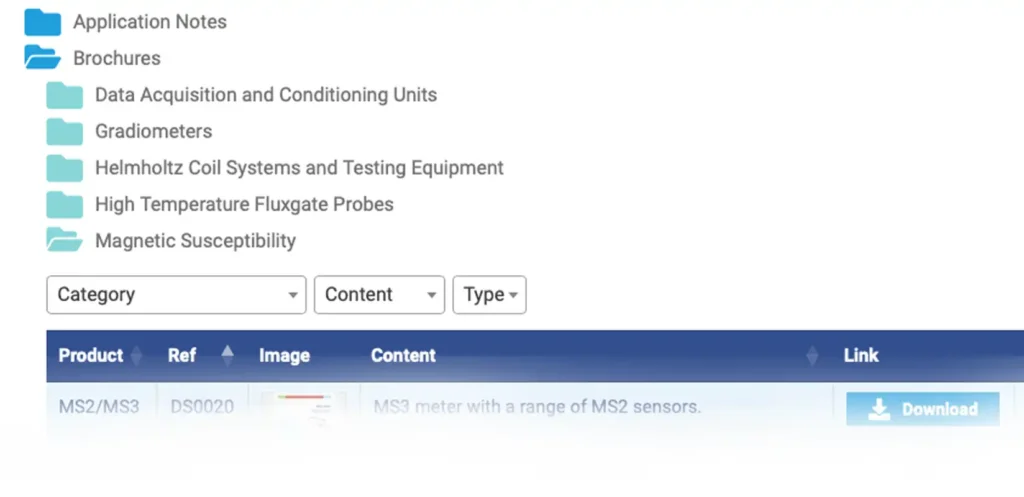
Use this to find one category of file, such as brochures or software.
Use this to find files for a specific product or application.
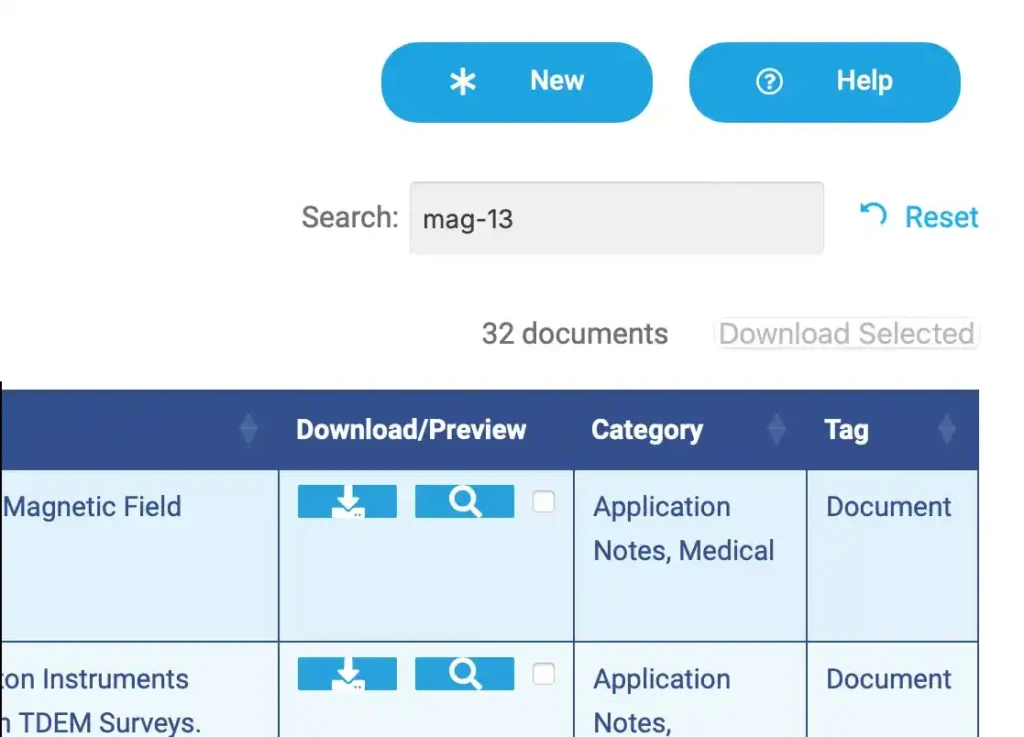
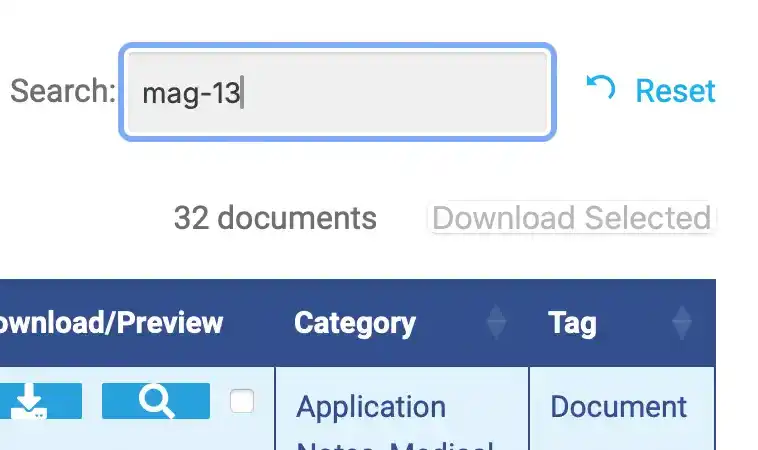
Search with Document Numbers
Most documents have a unique document and issue number. This usually appears on the first or last page. For example, DS3629/8 is document number 3629 issue 8.
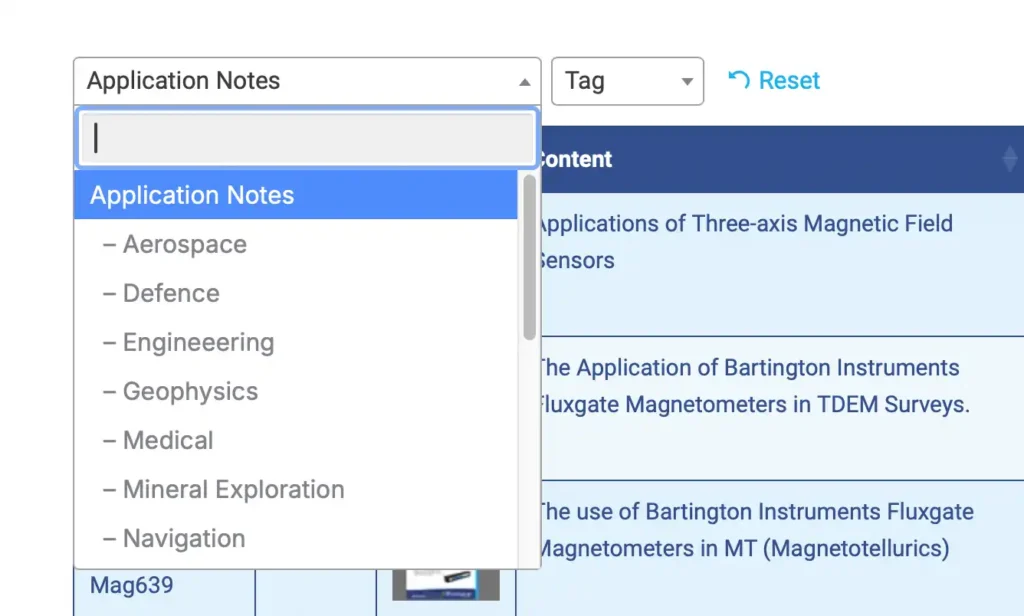
You can filter any search results for category, tag, and file type.
For example, click Category to filter on any of the content categories in the results.
Filter by Category
This allows you to filter the results to see just brochures or drawings.
Filter by Tag
This allows you to filter the results to see just documents, video or software.
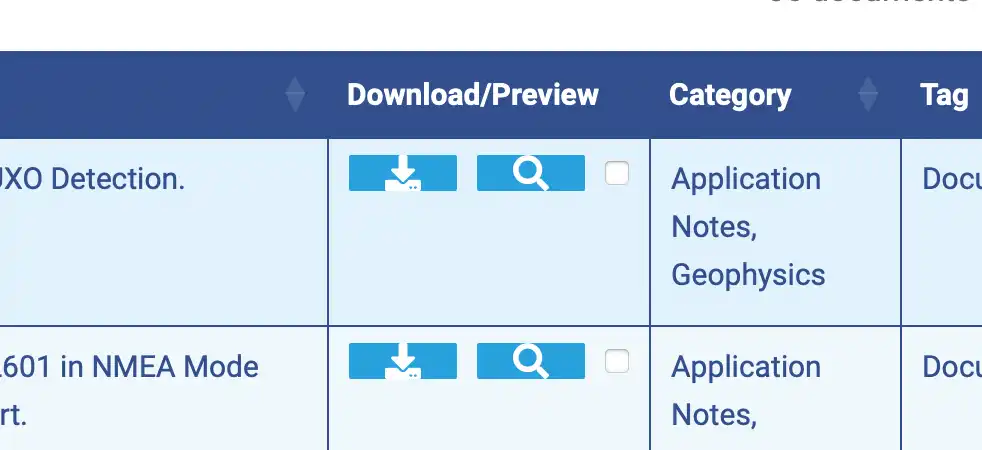
Preview provides an instant view of the document. it is much quicker that downloading.
Download a single file
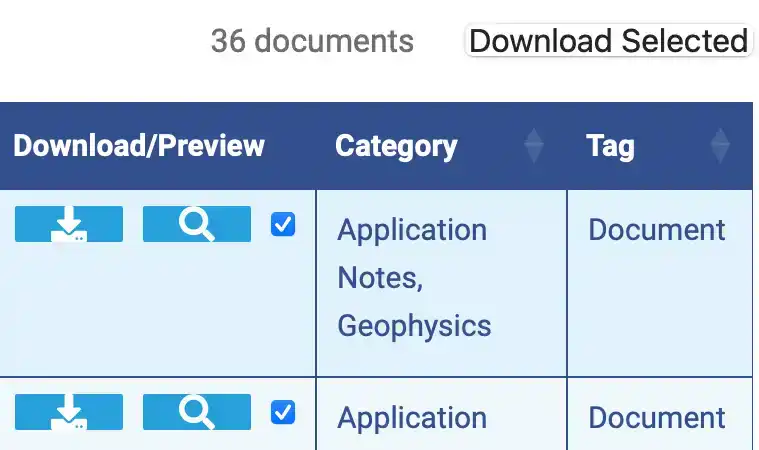
Download multiple files
This allows you to download any number of files at the same time.
Use your login to access extra content.
You will be logged out automatically after 1 day.
Some products, such as spare parts, have no downloadable content, but are likely to be available in our online shop.
Materials for some legacy products might not be available online. Or perhaps you are looking for something specific to a market sector or application not featured here.
We can help with that. Contact us and let us know what you need, and we will do our best to get it to you.